
Business IT Support Services in London Business IT Support Services in London
  • Business IT Support
    • IT Services
    • IT Support Services
      • IT Support Contract
      • Server Support
      • Internet Packages
      • Data Recovery
    • Cloud Services
      • Website Hosting
      • Hosted Desktop
      • Office 365 Support
      • Office 365 Migration Services
      • Data Backup
      • Email Signature Management
      • Managed IT Security
    • SEO
      • SEO Consultancy
      • Keyword Research
      • Position Tracking
      • Fixed Price SEO
    • Website Design
      • Joomla Support Services
      • Wordpress Support Services
      • Joomla Emergency Support
      • Joomla Troubleshooting and Repair
      • Joomla Upgrades & Migrations
      • Joomla Security Audits and Malware Removal
      • Joomla Website Health Check
      • Joomla Website Hosting
      • Joomla Content and Admin Support
    • IT Support Packages
    • Joomla Maintenance and Updates
    • Cyber Security
  • Repairs and Support
    • Computer Repair London
    • Laptop Repair London
    • Remote IT Support
    • PC Health Check
    • Apple Mac Repair
    • Workstation PCs
    • Gaming PCs
    • Data Recovery Services
  • Our Company
    • About SysFix IT Support
    • Contact Us
    • Terms and Conditions
    • Blog
    • Armed Forces Support
 
Business IT Support Services in London Business IT Support Services in London
  • Business IT Support

    Cloud Services

    • Cyber Security
    • Website Hosting
    • Hosted Desktop
    • Office 365 Support
    • Office 365 Migration Services
    • Data Backup
    • Email Signature Management
    • Managed IT Security

    SEO

    • SEO Consultancy
    • Keyword Research
    • Position Tracking
    • Fixed Price SEO

    Business IT Support Services

     book online computer help

    IT Support Services

    • Server Support
    • Internet Packages
    • Data Recovery
    • IT Support Contract
    • IT Support Packages

    Website Support Services

    • Joomla Support Services
    • Wordpress Support Services
    • Joomla Emergency Support
    • Joomla Troubleshooting and Repair
    • Joomla Upgrades & Migrations
    • Joomla Maintenance and Updates
    • Joomla Upgrades & Migrations
    • Joomla Security Audits and Malware Removal
    • Joomla Website Health Check
    • Joomla Website Hosting
    • Joomla Content and Admin Support
  • Repairs and Support

    Repair and Support

    • Computer Repair London
    • Laptop Repair London
    • Remote IT Support
    • PC Health Check
    • Apple Mac Repair
    • Data Recovery Services

    Custom Built Computers

    • Workstation PCs
    • Gaming PCs
  • Our Company
    • About SysFix IT Support
    • Contact Us
    • Terms and Conditions
    • Blog
    • Armed Forces Support
Contact Us 020 3095 7740
Remote IT Support
 

Windows 10 End of Support: Small Business Guide

IT Support Articles
Friday, 09 October 2026
Windows 10 End of Support: Small Business Guide

If your small business still runs Windows 10, you are not alone. But with end of support approaching, those familiar PCs are about to become a security liability. Here is what that means in plain English and how to fix it without disrupting your team.

In a nutshell
✓Windows 10 end of support means no more security patches for everyday editions, leaving known flaws unpatched.
✓Check every PC, laptop and shared machine now, including remote workers and that old till PC.
✓You have three realistic paths: upgrade to Windows 11, replace older hardware, or move to a hosted desktop.
✓A short, staged plan beats a last-minute panic and keeps your team working.

What Windows 10 end of support actually means

Every version of Windows has a support lifecycle. Once it ends, Microsoft stops releasing free security updates for that edition. For Windows 10, the end date is 14 October 2025 for most home and business editions. After that, your PCs will keep working, but they will no longer receive fixes for newly discovered security holes.

That is the key point: your computer does not stop. It simply becomes a known target. Cyber criminals actively watch for unsupported systems because they know the gaps will never be patched. A vulnerability that Microsoft would normally fix in a monthly update stays open indefinitely.

For a small business, this is not an abstract IT concern. It affects the laptop your finance manager uses for payroll, the shared PC at reception, and the machine that runs your booking system. If any of those are compromised, the fallout lands on you.
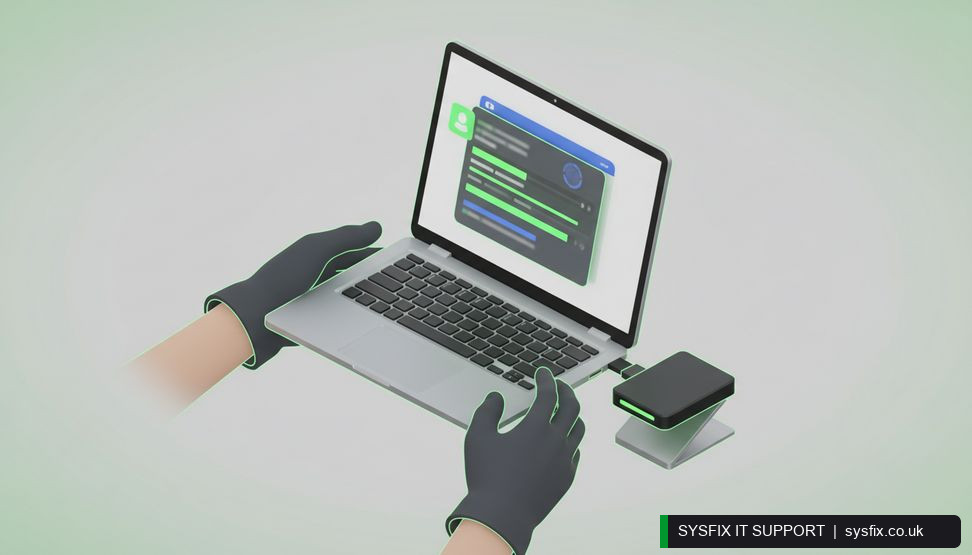
Technician checking a laptop backup and restore process with an external drive nearby

The real risks for a small business

Large companies have security teams watching for this. Small businesses rarely do, which is exactly why they are attractive targets. The risks are practical and immediate:

  • ✓Unpatched security flaws. Once a vulnerability is public and Microsoft is no longer patching Windows 10, attackers can exploit it repeatedly. Your antivirus may not catch every method.
  • ✓Ransomware and data theft. An unsupported PC is an easier entry point. If it holds client records, invoices or login details, that data is at risk.
  • ✓Compliance and insurance problems. If you handle client data, you have a duty to keep systems reasonably secure. Running unsupported software can breach contracts and may affect cyber insurance claims.
  • ✓Software stops working. Over time, accounting, CRM and industry apps stop supporting older Windows. You may find an update will not install at all.
  • ✓Lost productivity. When something breaks on an unsupported machine, fixes are harder to find and take longer.

None of this requires a dramatic breach. A single phishing email opened on an unpatched laptop can be enough.

💡 Pro tip: Run winver on every PC today and write down the results. That one list turns an overwhelming problem into a clear, manageable plan.

How to check if your fleet is affected

You do not need fancy tools to start. Grab a coffee and work through your devices one by one. Here is a simple method:

  • ✓On each PC, click Start, type winver and press Enter. A box will show your Windows version and edition.
  • ✓If it says Windows 10, note the edition (Home, Pro, Enterprise) and the version number (for example 22H2).
  • ✓Check Settings > Update & Security > Windows Update to see if updates are pending or failing.
  • ✓List every device: desktops, laptops, tablets, shared machines, and any PC running a till, label printer or booking system.
  • ✓Include remote workers. A laptop at someone's kitchen table is still part of your fleet.

Once you have the list, mark which ones are used for sensitive tasks such as finance, HR, client data or email. Those are your priority.

If you would rather not do this manually, a professional PC health check can assess your machines and give you a clear report.

Common mistakes to avoid

We see the same missteps again and again. Avoiding them saves time, money and stress.

  • ✓Assuming Windows 11 will run on everything. It has stricter hardware requirements, including TPM 2.0 and a supported processor. Older PCs simply will not qualify.
  • ✓Leaving it until the last minute. Hardware shortages, supplier lead times and engineer availability all get worse as the deadline nears.
  • ✓Upgrading only the obvious machines. The forgotten laptop in the stockroom or the director's home PC is often the weakest link.
  • ✓Ignoring the software. Line-of-business apps, drivers and peripherals may need updates or replacements too.
  • ✓Doing a clean install without a backup. Always verify your data is backed up and restorable before any major change.
  • ✓Forgetting about remote access. If staff connect in from home, their devices and your network both need attention.

One more: do not rush to install every update blindly on a whim. Planned, tested updates are safer than panic patching. Our note on [[page:page-1|not rushing service packs and updates]] explains why.

Need a clear picture of your fleet?

Our PC health check reviews every machine and tells you which are at risk and what to do next.

Explore PC health check → Talk to SysFix →

Your upgrade paths explained

There is no single right answer. The best route depends on the age of your hardware, how you work, and your budget. Here are the realistic options.

1. Upgrade to Windows 11. If your PCs meet the requirements, an in-place upgrade or clean install gets you back on a supported platform. This is often the simplest path for newer machines. It keeps everything local and familiar. You will want to test key apps first and make sure backups are current.

2. Replace older hardware. If your PCs are five or more years old, upgrading may not be worth it. New machines come with Windows 11 Pro, better security features and improved performance. This is also a good moment to standardise your fleet so support is easier.

3. Move to a hosted desktop. Instead of replacing every PC, you can run Windows in the cloud and access it from almost any device. Staff log in to a secure desktop from the office, home or a laptop. Your data stays in the data centre, not on the device. This suits businesses with a mix of old hardware, remote workers, or a need for tighter control. It also simplifies updates and backup.

Whichever path you choose, plan it in stages. Pilot with a small group, gather feedback, then roll out. If you are unsure, a support package can include an assessment and a migration plan.

A step-by-step migration plan

Here is a practical sequence that works for most small businesses.

  • ✓Week 1: Audit. List every device, its Windows edition, its age and what it is used for. Identify the machines that hold sensitive data.
  • ✓Week 2: Decide. For each device, choose upgrade, replace or move to hosted desktop. Check compatibility for key apps and peripherals.
  • ✓Week 3: Back up and test. Confirm your backups are working and that you can restore files. Test a restore, not just a backup.
  • ✓Week 4: Pilot. Migrate two or three users. Watch for login issues, printer problems and app errors.
  • ✓Weeks 5-8: Roll out. Migrate in small groups. Keep the old machines available until each user is settled.
  • ✓Afterwards: Review. Update your asset list, remove old devices securely, and document what changed.

If you use Microsoft 365, take the opportunity to review your setup. A Microsoft 365 migration can run alongside your Windows project so email, files and Teams are all consistent.

What about Windows 11 compatibility?

Windows 11 has specific requirements. The main ones are a supported 64-bit processor, 4GB of RAM, 64GB of storage, UEFI Secure Boot, and TPM version 2.0. Many PCs bought before around 2018 will not meet these, even if they still feel fast enough for everyday work.

You can check individual machines with Microsoft's PC Health Check app. It gives a clear yes or no and explains what is missing. We have a short guide on the [[page:page-4|Windows 11 PC Health Check app]] if you want to run it yourself.

If a machine fails, do not force it. Unsupported installs can miss updates and behave unpredictably. It is better to replace the device or move that user to a hosted desktop.

Also consider your server. If you run an on-premises server, its own support lifecycle matters just as much. Our article on [[page:page-3|Windows Server 2012 R2 end of life]] covers the same principles, and [[page:page-2|Windows Server 2025]] is worth understanding if a server refresh is on your horizon.

Thinking about hosted desktop?

Move Windows to the cloud and let staff work securely from any device, old or new.

Explore hosted desktop → Talk to SysFix →

Securing your business during the transition

While you plan and migrate, do not leave the door open. A few basics make a big difference:

  • ✓Keep antivirus and endpoint protection up to date on every machine, including the ones awaiting upgrade.
  • ✓Turn on multi-factor authentication for email, Microsoft 365 and any remote access.
  • ✓Check your backups daily. A good backup is your best recovery tool if something goes wrong.
  • ✓Limit administrator rights. Staff should not be running as local admins day to day.
  • ✓Patch what you can. Even on Windows 10, install available updates until the machine is retired.
  • ✓Train staff to spot phishing. Most breaches start with a convincing email.

If you want this handled for you, managed IT security covers monitoring, patching and threat protection. For data, data backup and data recovery are worth reviewing before any migration.

How SysFix can help

We work with small businesses across London and the South East, and we have guided many through exactly this kind of transition. Our approach is straightforward: assess what you have, explain your options in plain English, and carry out the work with minimal disruption.

Depending on your needs, we can:

  • ✓Run a full audit and PC health check across your fleet.
  • ✓Upgrade eligible machines to Windows 11 and replace those that cannot.
  • ✓Set up hosted desktop so staff can work securely from anywhere.
  • ✓Handle Microsoft 365 support and migration as part of the project.
  • ✓Provide ongoing IT support contracts so you are never caught out again.

You do not need to do everything at once. Start with an audit, then decide. If you would like a second opinion, remote IT support can often answer the key questions in a single session.

Not sure which PCs are affected?

Book a PC health check and we will audit your fleet, flag the risks and recommend the right upgrade path for your business.

Explore PC health check → Book a FREE IT Consultation →
Or call 020 3095 7740

Related services: IT support packages · cyber security services · data backup

×
Stay Informed

When you subscribe to the blog, we will send you an e-mail when there are new updates on the site so you wouldn't miss them.
Related Posts

Microsoft 365 MFA Setup for Small Business

IT Support Articles

Microsoft 365 Copilot Security: Audit Guide for SMBs

IT Support Articles

Why Cheap Computers Under £500 Cost You More

IT Support Articles

Business IT Support Services

 book online computer help

CONTACT INFORMATION

SysFix IT Support & Computer Repairs
AMP House
4 Dingwall Road
Croydon
CR0 2LX

020 3095 7740

Location
Find us on Google Maps

BUSINESS IT SUPPORT

  • IT Support Packages
  • IT Support Croydon
  • IT Support Surrey
  • IT Support Kent
  • IT Support Brighton
  • Outsourced IT Support
  • Managed IT Services
  • Remote IT Support
  • GDPR Privacy Policy

IT SUPPORT SERVICES

  • IT Support Contract
  • Email Hosting and Office 365 
  • UK Cloud Data Backup
  • Server Support and Maintenance
  • Data Recovery London
  • Computer Repair London

IT companies in london

© SysFix IT Support Ltd, 2003-2026
VAT Number: GB 206 7821 12
Company Number: 09416191