Business IT Support Services in London Business IT Support Services in London
  • Business IT Support
    • IT Services
    • IT Support Services
      • IT Support Contract
      • Server Support
      • Internet Packages
      • Data Recovery
    • Cloud Services
      • Website Hosting
      • Hosted Desktop
      • Office 365 Support
      • Office 365 Migration Services
      • Data Backup
      • Email Signature Management
      • Managed IT Security
    • SEO
      • SEO Consultancy
      • Keyword Research
      • Position Tracking
      • Fixed Price SEO
    • Website Design
      • Joomla Support Services
      • Wordpress Support Services
      • Joomla Emergency Support
      • Joomla Troubleshooting and Repair
      • Joomla Upgrades & Migrations
      • Joomla Security Audits and Malware Removal
      • Joomla Website Health Check
      • Joomla Website Hosting
      • Joomla Content and Admin Support
    • IT Support Packages
    • Joomla Maintenance and Updates
    • Cyber Security
  • Repairs and Support
    • Computer Repair London
    • Laptop Repair London
    • Remote IT Support
    • PC Health Check
    • Apple Mac Repair
    • Workstation PCs
    • Gaming PCs
    • Data Recovery Services
  • Our Company
    • About SysFix IT Support
    • Contact Us
    • Terms and Conditions
    • Blog
    • Armed Forces Support
 
Business IT Support Services in London Business IT Support Services in London
  • Business IT Support

    Cloud Services

    • Cyber Security
    • Website Hosting
    • Hosted Desktop
    • Office 365 Support
    • Office 365 Migration Services
    • Data Backup
    • Email Signature Management
    • Managed IT Security

    SEO

    • SEO Consultancy
    • Keyword Research
    • Position Tracking
    • Fixed Price SEO

    Business IT Support Services

     book online computer help

    IT Support Services

    • Server Support
    • Internet Packages
    • Data Recovery
    • IT Support Contract
    • IT Support Packages

    Website Support Services

    • Joomla Support Services
    • Wordpress Support Services
    • Joomla Emergency Support
    • Joomla Troubleshooting and Repair
    • Joomla Upgrades & Migrations
    • Joomla Maintenance and Updates
    • Joomla Upgrades & Migrations
    • Joomla Security Audits and Malware Removal
    • Joomla Website Health Check
    • Joomla Website Hosting
    • Joomla Content and Admin Support
  • Repairs and Support

    Repair and Support

    • Computer Repair London
    • Laptop Repair London
    • Remote IT Support
    • PC Health Check
    • Apple Mac Repair
    • Data Recovery Services

    Custom Built Computers

    • Workstation PCs
    • Gaming PCs
  • Our Company
    • About SysFix IT Support
    • Contact Us
    • Terms and Conditions
    • Blog
    • Armed Forces Support
Contact Us 020 3095 7740
Remote IT Support
 

Microsoft 365 MFA Setup for Small Business

IT Support Articles
Saturday, 10 October 2026
Microsoft 365 MFA Setup for Small Business

Multi-factor authentication is the single most effective way to stop most account takeovers, yet many small businesses put it off because they fear locking staff out. This guide walks you through a calm, staged Microsoft 365 MFA setup that keeps people working while closing the door on the common attacks we see in London and the South East.

Quick summary
✓Roll out MFA in waves, starting with admins, then pilot users, then everyone else, using temporary access passes to avoid lockouts.
✓Reduce push-notification fatigue with number matching, extra context and app-based methods instead of SMS where possible.
✓Use conditional access to require MFA only when risk is higher, such as from unknown locations or non-managed devices.
✓Provide clear staff guidance and a simple way to report suspicious prompts to cut the risk of MFA bypass attacks.

1Why MFA matters more than ever for small businesses

If you run a small business, your Microsoft 365 account is the keys to your kingdom: email, files, invoices, client records and often your banking contacts. Criminals know this. Most breaches we see start with a stolen password, not a sophisticated hack. Once someone has a valid username and password, they can often log in from anywhere in the world and quietly read your mail or set up forwarding rules.

Multi-factor authentication (MFA) adds a second check at sign-in, usually something you have (a phone app or security key) or something you are (a fingerprint or face). Even if a password is stolen or guessed, the attacker still can't get in without that second factor. For small teams, MFA is the highest-value security control you can switch on, and Microsoft 365 includes it at no extra licence cost.

The challenge isn't whether to do it; it's how to do it without a morning of locked-out staff and angry clients. That's what this guide covers.
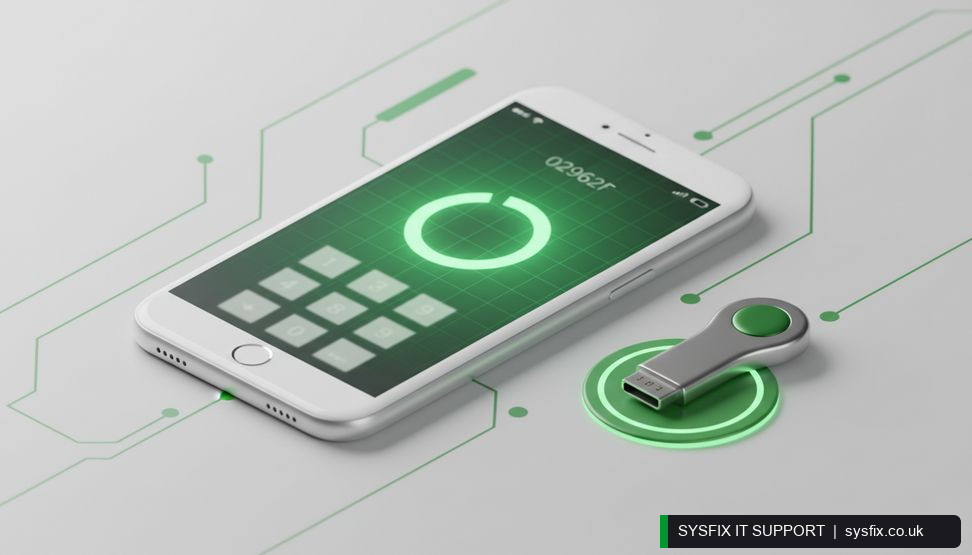
Smartphone showing a number matching prompt beside a security key on a desk.

2Before you start: practical preparation

Good MFA rollouts are boring. They are planned, communicated and tested. Before you touch any settings, do these four things:

  • ✓Check your licences. Most Microsoft 365 Business and Enterprise plans include the tools you need for conditional access and security defaults. If you're on a basic plan, you may need to review what's available. If you're unsure, a quick review of your Microsoft 365 support options can clarify what's included.
  • ✓Identify your admins. Global admins should get MFA first, without exception. If an admin account is compromised, an attacker can change everything.
  • ✓Decide your methods. The Microsoft Authenticator app is the best default for most staff. SMS is better than nothing but is more vulnerable to SIM-swap attacks. Security keys are excellent for admins and finance staff.
  • ✓Pick a pilot group. Choose five to ten willing people across different roles. They'll find the snags before everyone else does.

Also, make sure you have at least two global admins, and that both are protected with MFA and have a working recovery method. A single admin locked out of their own tenant is a painful afternoon.

💡 Pro tip: Pre-register your pilot group for MFA before enforcing any policy. It turns a stressful Monday morning into a quiet, controlled rollout.

3Step-by-step: enabling MFA in Microsoft 365

There are two main routes: Security Defaults and Conditional Access. Security Defaults is a simple on/off switch that enforces MFA for all users. Conditional Access gives you finer control and is what we recommend for most small businesses once you're comfortable.

Option 1: Security Defaults (quick and blunt).

  • ✓Sign in to the Microsoft 365 admin centre as a global admin.
  • ✓Go to Settings > Org settings > Security Defaults.
  • ✓Turn Security Defaults on. Microsoft will prompt users to register for MFA the next time they sign in.

This is fast but can feel abrupt. If you switch it on at 9am on a Monday, expect a busy morning. A better approach is to enable it after you've pre-registered your pilot group.

Option 2: Conditional Access (recommended).

  • ✓Ensure you have the right licences (Business Premium or equivalent).
  • ✓In the Microsoft Entra admin centre, go to Protection > Conditional Access.
  • ✓Create a new policy. Start with a pilot group.
  • ✓Under Users, include your pilot group and exclude your break-glass admin account.
  • ✓Under Cloud apps, include All cloud apps (or start with Microsoft 365).
  • ✓Under Grant, select Require multi-factor authentication.
  • ✓Set the policy to Report-only first, so you can see who would be affected without blocking anyone.
  • ✓After a few days, switch it to On.

Repeat for each wave of users. This staged approach is the single best way to avoid a lockout disaster.

4Avoiding lockouts: temporary access passes and clear comms

Lockouts happen when someone loses their phone, changes number, or simply hasn't set up MFA before a policy kicks in. Microsoft provides Temporary Access Passes (TAPs) for exactly this. A TAP is a time-limited code you can give a user so they can sign in and register their MFA method.

  • ✓Create a TAP in the Entra admin centre under Authentication methods.
  • ✓Set a short lifetime (for example, a few hours) and single use where possible.
  • ✓Share it securely, ideally in person or via a trusted channel.

Communication matters just as much as technology. Send a short email a week before, explaining what MFA is, why you're doing it, and what staff need to do. Include a one-page guide with screenshots for the Microsoft Authenticator app. On the day, have someone available to help. Most problems are solved in two minutes with a calm voice on the phone.

If you'd rather not manage this yourself, a managed service can handle the rollout and the support calls. See our managed IT security services for how that works.

Struggling with MFA rollout?

We handle Microsoft 365 MFA setup for small businesses every day, from planning to staff support. Let us take the pressure off.

Explore Microsoft 365 support → Talk to SysFix →

5Tackling push-notification fatigue

Push fatigue happens when staff get so many MFA prompts that they approve them without thinking. Attackers exploit this by repeatedly triggering prompts, hoping someone taps Approve out of habit. It's a real risk, especially for busy finance and admin teams.

Microsoft has added features to help. Turn on number matching, which requires the user to enter a number shown on the sign-in screen into the Authenticator app. This makes blind approval impossible. Also enable additional context, which shows the app and location of the sign-in attempt, so users can spot anything unusual.

Other sensible steps:

  • ✓Prefer the Authenticator app over SMS, as it's harder to intercept.
  • ✓Encourage staff to deny any prompt they didn't initiate and report it immediately.
  • ✓Review sign-in logs regularly for repeated failed MFA attempts, which can indicate an attack.
  • ✓Consider passwordless methods such as Windows Hello or passkeys for staff who are ready.

If you're unsure whether your settings are right, a cyber security review can check them and suggest improvements.

6Understanding MFA bypass attacks

MFA is powerful, but it isn't magic. Attackers have adapted. The most common bypass techniques we see are:

  • ✓Adversary-in-the-middle phishing. A fake login page captures both your password and your session token, letting the attacker skip MFA entirely. The best defence is user awareness and phishing-resistant methods like security keys or passkeys.
  • ✓MFA fatigue. As above, repeated prompts until someone approves. Number matching and user education reduce this sharply.
  • ✓Help desk social engineering. An attacker calls your IT support pretending to be a locked-out employee, hoping to get MFA reset. Always verify identity through a known channel before resetting anything.
  • ✓Legacy authentication. Older protocols like POP and IMAP can bypass MFA. Block legacy authentication in conditional access.

For a broader view of how these attacks fit together, see our guide on how to prevent a cyber attack. It's worth reading alongside this one.

7Conditional access policies that balance security and usability

Conditional access lets you require MFA only when the risk is higher, which keeps day-to-day work smooth. A practical starter set for a small business looks like this:

  • ✓Require MFA for all users as a baseline, with a break-glass admin excluded.
  • ✓Require MFA for admins at all times, no exceptions.
  • ✓Block legacy authentication across the tenant.
  • ✓Require MFA when signing in from outside the UK (or from countries you don't operate in).
  • ✓Require a compliant or managed device for access to sensitive apps like finance or HR systems.
  • ✓Require MFA for risky sign-ins using Microsoft's risk signals, if your licence supports it.

Always test new policies in report-only mode first, and roll them out to a small group before everyone. Document what each policy does, so you're not afraid to change it later. If you'd like help designing this, our Microsoft 365 support team can build and maintain the policies for you.

Want stronger MFA protection?

Our cyber security team can review your MFA settings, block legacy authentication and harden your tenant against bypass attacks.

Explore cyber security services → Talk to SysFix →

8Staff training and ongoing checks

Technology alone won't keep you safe. Ten minutes of training can prevent most incidents. Cover these points with your team:

  • ✓What MFA is and why it matters.
  • ✓How to spot a fake login page (check the URL, look for odd wording).
  • ✓Never approve a prompt you didn't trigger; report it instead.
  • ✓How to report a suspected compromise quickly.

Run a short refresher every six months, and include MFA in your onboarding checklist for new starters. Review your sign-in logs monthly, looking for unusual locations or repeated failures. If you use contractors or temporary staff, make sure their accounts are covered too, and disabled promptly when they leave.

For more practical IT tips for small teams, our IT support blog for small business owners is a good place to start.

9Your MFA rollout checklist

Use this as a quick reference before, during and after your rollout:

  • ✓Confirm licences and admin accounts.
  • ✓Choose authentication methods (app first, SMS as fallback).
  • ✓Enable number matching and additional context.
  • ✓Create a break-glass admin account and exclude it from policies.
  • ✓Pilot with a small group, then roll out in waves.
  • ✓Use Temporary Access Passes for stragglers and new starters.
  • ✓Block legacy authentication.
  • ✓Test conditional access in report-only mode before enforcing.
  • ✓Train staff and provide a simple reporting route.
  • ✓Review sign-in logs monthly and adjust policies as needed.

If you'd like a hand with any of this, our managed IT security service covers setup, monitoring and ongoing support, so you can get on with running your business.

Need help with Microsoft 365 MFA?

Our team can plan, roll out and support MFA across your business, keeping staff working and your accounts secure. Get in touch to talk through your setup.

Explore managed IT security → Book a FREE IT Consultation →
Or call 020 3095 7740

Related services: Microsoft 365 support · cyber security services · managed IT security

×
Stay Informed

When you subscribe to the blog, we will send you an e-mail when there are new updates on the site so you wouldn't miss them.
Related Posts

Microsoft 365 Copilot Security: Audit Guide for SMBs

IT Support Articles

Why Cheap Computers Under £500 Cost You More

IT Support Articles

How Cyber Security Awareness Training Cuts Breach Risk

IT Support Articles

Business IT Support Services

 book online computer help

CONTACT INFORMATION

SysFix IT Support & Computer Repairs
AMP House
4 Dingwall Road
Croydon
CR0 2LX

020 3095 7740

Location
Find us on Google Maps

BUSINESS IT SUPPORT

  • IT Support Packages
  • IT Support Croydon
  • IT Support Surrey
  • IT Support Kent
  • IT Support Brighton
  • Outsourced IT Support
  • Managed IT Services
  • Remote IT Support
  • GDPR Privacy Policy

IT SUPPORT SERVICES

  • IT Support Contract
  • Email Hosting and Office 365 
  • UK Cloud Data Backup
  • Server Support and Maintenance
  • Data Recovery London
  • Computer Repair London

IT companies in london

© SysFix IT Support Ltd, 2003-2026
VAT Number: GB 206 7821 12
Company Number: 09416191