Business IT Support Services in London Business IT Support Services in London
  • Business IT Support
    • IT Services
    • IT Support Services
      • IT Support Contract
      • Server Support
      • Internet Packages
      • Data Recovery
    • Cloud Services
      • Website Hosting
      • Hosted Desktop
      • Office 365 Support
      • Office 365 Migration Services
      • Data Backup
      • Email Signature Management
      • Managed IT Security
    • SEO
      • SEO Consultancy
      • Keyword Research
      • Position Tracking
      • Fixed Price SEO
    • Website Design
      • Joomla Support Services
      • Wordpress Support Services
      • Joomla Emergency Support
      • Joomla Troubleshooting and Repair
      • Joomla Upgrades & Migrations
      • Joomla Security Audits and Malware Removal
      • Joomla Website Health Check
      • Joomla Website Hosting
      • Joomla Content and Admin Support
    • IT Support Packages
    • Joomla Maintenance and Updates
    • Cyber Security
  • Repairs and Support
    • Computer Repair London
    • Laptop Repair London
    • Remote IT Support
    • PC Health Check
    • Apple Mac Repair
    • Workstation PCs
    • Gaming PCs
    • Data Recovery Services
  • Our Company
    • About SysFix IT Support
    • Contact Us
    • Terms and Conditions
    • Blog
    • Armed Forces Support
 
Business IT Support Services in London Business IT Support Services in London
  • Business IT Support

    Cloud Services

    • Cyber Security
    • Website Hosting
    • Hosted Desktop
    • Office 365 Support
    • Office 365 Migration Services
    • Data Backup
    • Email Signature Management
    • Managed IT Security

    SEO

    • SEO Consultancy
    • Keyword Research
    • Position Tracking
    • Fixed Price SEO

    Business IT Support Services

     book online computer help

    IT Support Services

    • Server Support
    • Internet Packages
    • Data Recovery
    • IT Support Contract
    • IT Support Packages

    Website Support Services

    • Joomla Support Services
    • Wordpress Support Services
    • Joomla Emergency Support
    • Joomla Troubleshooting and Repair
    • Joomla Upgrades & Migrations
    • Joomla Maintenance and Updates
    • Joomla Upgrades & Migrations
    • Joomla Security Audits and Malware Removal
    • Joomla Website Health Check
    • Joomla Website Hosting
    • Joomla Content and Admin Support
  • Repairs and Support

    Repair and Support

    • Computer Repair London
    • Laptop Repair London
    • Remote IT Support
    • PC Health Check
    • Apple Mac Repair
    • Data Recovery Services

    Custom Built Computers

    • Workstation PCs
    • Gaming PCs
  • Our Company
    • About SysFix IT Support
    • Contact Us
    • Terms and Conditions
    • Blog
    • Armed Forces Support
Contact Us 020 3095 7740
Remote IT Support
 

Password Manager for Small Business: A Rollout Guide

IT Support Articles
Tuesday, 13 October 2026
Password Manager for Small Business: A Rollout Guide

Ask five people in your office how they remember their passwords and you will get five variations of the same answer: something short, something reused, and something written on a sticky note. That is not a staff problem, it is a process problem. This guide walks you through choosing, rolling out and actually enforcing a password manager across a small team, including shared vaults for admin logins and multi-factor authentication.

01Why password reuse is still the number one way small businesses get breached

Most breaches that hit small firms do not involve a hooded figure typing furiously. They involve a password that was already leaked somewhere else. A member of staff uses the same password for their personal shopping account, a supplier portal and your Microsoft 365 mailbox. One of those sites gets breached, the credentials appear on a list, and someone tries them against your email. It works.

The second common route is credential stuffing against remote access. If you have a VPN, a webmail login or a remote desktop gateway exposed to the internet, attackers will try known username and password pairs against it automatically, thousands of times an hour. They are not targeting you specifically; you are simply on the list.

Then there is the shared password problem. In many small offices, the finance login, the domain admin account and the website hosting panel all use the same password, and four people know it. When someone leaves, nobody changes it. When a supplier is compromised, you have no idea who else has that password.

A password manager does not fix human nature, but it removes the two things attackers rely on most: reused passwords and passwords that lots of people know. If you want the wider picture of how these attacks land, our guide on how to prevent a cyber attack is a useful companion read.
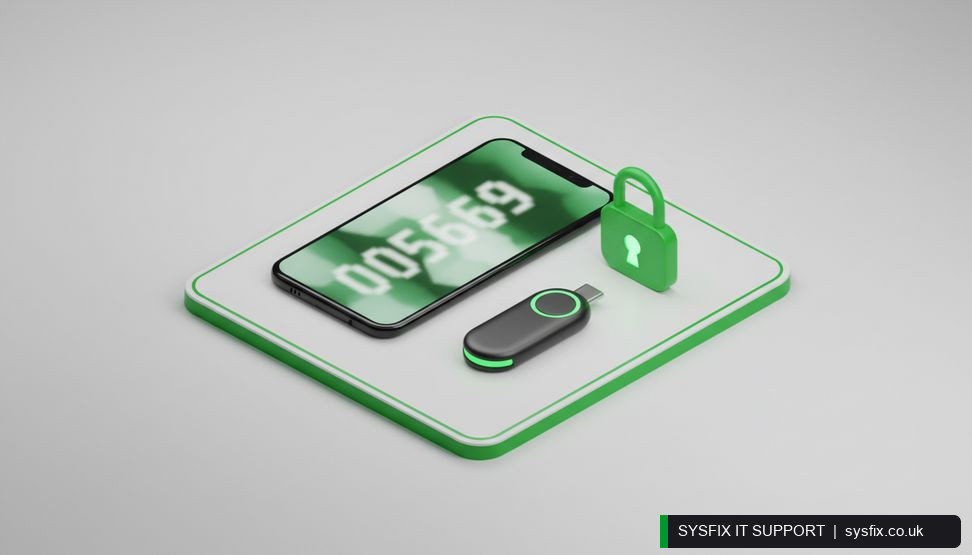
Smartphone showing an authentication code next to a hardware security key and a padlock icon

02What a password manager actually does (and what it does not)

At its simplest, a password manager is an encrypted vault. Each person gets one master password, or better, a passphrase plus multi-factor authentication. Everything else, every website login, every application credential, lives inside the vault and is filled in automatically.

What it does well:

  • ✓Generates long, random, unique passwords for every site and service.
  • ✓Stores them encrypted so nobody, including your IT provider, can read them without the master key.
  • ✓Shares specific credentials with specific people, and revokes that access instantly.
  • ✓Warns you when a stored password has appeared in a known breach.
  • ✓Keeps an audit trail of who accessed a shared credential and when.

What it does not do:

  • ✓It will not stop someone writing their master password on a sticky note under the keyboard. That is a policy and training issue.
  • ✓It does not replace multi-factor authentication. It complements it.
  • ✓It does not magically tidy up 400 saved passwords in Chrome on a shared laptop. Someone has to do that work.

Think of it as a lock on the front door. Useful, necessary, and pointless if you leave the key in the lock.

Before you roll out, ask staff to list every work login they use. Most small teams are surprised to find 40 or more, and several nobody owns.
Pro tip

03Choosing the right tool for a team of 2 to 50

You do not need enterprise pricing or a 40-page procurement document. You need something that works on Windows, macOS, iPhone and Android, has a decent browser extension, and offers shared vaults on a business plan rather than a personal one.

What to look for:

  • ✓Business tier, not personal. Personal plans do not give you central administration, user provisioning or the ability to revoke access when someone leaves.
  • ✓Shared vaults or collections. You need a way to group credentials by team or function, for example Finance, Operations, IT.
  • ✓Multi-factor authentication support. Both for logging into the vault itself and for storing one-time codes.
  • ✓Single sign-on via Microsoft 365 or Google Workspace. If you already use Microsoft 365, this makes onboarding and offboarding dramatically simpler. Our Microsoft 365 support team can help you line up the identity side.
  • ✓Audit logging. Who viewed which credential, and when. This matters when something goes wrong.
  • ✓Emergency access. If the owner is on holiday and the vault is locked, someone needs a documented way in.

Avoid anything that only works as a browser extension with no mobile app, and avoid free tiers for business use. Free tiers are fine for testing, not for running a company.

04Planning the rollout: pilot first, then departments

The mistake most small businesses make is announcing a password manager on a Monday and expecting everyone to be using it by Friday. It does not work. People resist, the vault sits half empty, and six months later you are back to shared spreadsheets.

A rollout that actually sticks looks like this:

  • ✓Week 1: pick a pilot group. Four to six people, ideally a mix of confident and less confident users. Include at least one person who is openly sceptical.
  • ✓Week 2: set up the vault structure. Create the shared vaults and decide who owns each one. Do not create 30 vaults; start with three or four.
  • ✓Week 2-3: import and clean. Have the pilot group import their browser-saved passwords, then delete duplicates and change anything reused. This is the tedious bit and it is worth doing properly.
  • ✓Week 3: daily use only. For one week, the pilot group must use only the vault. No exceptions, no falling back to the browser.
  • ✓Week 4: gather feedback. What broke? What confused people? Fix it before you roll out further.
  • ✓Week 5 onwards: roll out department by department. Two to three weeks per group, with a short training session each time.

If you would rather not run this yourself, a managed provider can handle the setup and the hand-holding. Our managed IT security service covers exactly this kind of project.

Not sure which tool fits your team?

We help small businesses pick and deploy the right password manager without overpaying for features you will never use.

Explore managed IT security → Talk to SysFix →

05Shared vaults for admin credentials: getting the rules right

Shared vaults are where small businesses get the most value and cause the most damage. The value is obvious: nobody has to email the domain admin password around. The damage comes from putting too much in them and giving access to too many people.

Good candidates for a shared vault:

  • ✓Domain administrator and local administrator accounts.
  • ✓Router, firewall and switch logins.
  • ✓Website hosting and domain registrar accounts.
  • ✓Accounting software superuser accounts.
  • ✓Shared service accounts, for example a backup system or a line-of-business application.
  • ✓Social media and marketing platform logins used by more than one person.

Bad candidates:

  • ✓Individual staff email accounts. Those belong to the person, not the company vault.
  • ✓Banking logins where the bank requires individual named users. Use the bank's own permission model instead.
  • ✓Anything with a personal licence attached to a named employee.

Set a rule that every shared credential has a named owner. That person is responsible for reviewing who has access every quarter and removing anyone who has changed role or left. Without an owner, shared vaults rot.

Also decide now what happens when someone leaves. The answer should be: disable their directory account, revoke their vault access, rotate every shared credential they could see. Put that in writing before you need it.

06Turning on multi-factor authentication without annoying everyone

Multi-factor authentication, or MFA, is the single biggest improvement you can make after unique passwords. It means a stolen password alone is not enough to get in.

Start with the vault itself. Every user should need a second factor to unlock it, ideally an authenticator app or a hardware key rather than SMS.

Then work outwards in this order:

  • ✓Email, because password resets for everything else flow through it.
  • ✓Microsoft 365 or Google Workspace accounts, including admin accounts.
  • ✓Banking and finance systems.
  • ✓Remote access, VPN and any remote desktop gateway.
  • ✓Website hosting and domain registrar.
  • ✓Everything else, over time.

Common mistakes here:

  • ✓Turning on MFA for staff but not for admin accounts. Attackers go for admin.
  • ✓Using SMS only. It is better than nothing but vulnerable to SIM swapping.
  • ✓Not having a break-glass process. If the only admin loses their phone, you are locked out of your own tenant.
  • ✓Forgetting to train people on what a push notification bombing attack looks like. If someone gets 15 MFA prompts in a row, that means someone has their password. They should deny and report it.

Our post on how cyber security awareness training cuts breach risk covers the human side of this well, and it is worth sharing with your team alongside the rollout.

07Writing the policy that makes it stick

A password manager without a policy is a suggestion. You need something short, plain and enforceable. One page is enough.

Cover these points:

  • ✓All work-related credentials must be stored in the company password manager. No exceptions.
  • ✓Passwords must be generated by the manager, not chosen by the user. Minimum length set to at least 16 characters.
  • ✓Sharing credentials outside the vault, by email, chat or paper, is not permitted.
  • ✓Shared credentials must have a named owner and be reviewed quarterly.
  • ✓MFA is mandatory on the vault, email, Microsoft 365 and all admin accounts.
  • ✓Leavers: access revoked the same day, shared credentials rotated.
  • ✓Breach alerts from the vault must be actioned within 48 hours.

Then enforce it gently. Do not audit everyone in week one. Instead, check in at 30 days, then 90 days. If you find someone still keeping passwords in a spreadsheet, treat it as a training gap rather than a disciplinary matter, at least the first time.

If you already have an IT support contract, ask your provider to fold password manager administration into it. Our IT support contracts page explains how that usually works.

Struggling with MFA and Microsoft 365?

We can configure multi-factor authentication across your Microsoft 365 tenant and admin accounts, safely and with a break-glass plan.

Explore Microsoft 365 support → Talk to SysFix →

08Common mistakes to avoid

After watching a lot of small businesses do this, the same problems come up again and again.

  • ✓Buying licences but not onboarding. A vault nobody uses is worse than no vault, because you think you are covered.
  • ✓Letting people keep their old passwords alongside the new ones. If the old password still works, nothing has changed.
  • ✓One giant shared vault for everything. No audit trail, no ownership, no point.
  • ✓Forgetting personal devices. If staff check work email on a personal phone, the vault needs to be on that phone too.
  • ✓No offboarding process. Leavers keep working credentials for months.
  • ✓Ignoring the browser's built-in password store. Turn it off via policy on managed devices, or people will keep using it.
  • ✓Skipping the master password conversation. A weak master password undermines the whole vault. Insist on a long passphrase.

If you are doing this alongside other housekeeping, our guide on how to manage your passwords and keep them safe is a good primer to circulate to staff before the rollout starts.

09A simple rollout checklist

Print this, work through it, tick it off.

  • ✓Choose a business-tier password manager with shared vaults and MFA.
  • ✓Enable single sign-on through Microsoft 365 or Google Workspace if possible.
  • ✓Define three or four shared vaults and name an owner for each.
  • ✓Write a one-page password policy and get it signed off by management.
  • ✓Run a four to six person pilot for one month.
  • ✓Import, clean and rotate passwords during the pilot.
  • ✓Turn on MFA for the vault, email and all admin accounts.
  • ✓Roll out department by department with a short training session each time.
  • ✓Disable browser password saving on managed devices.
  • ✓Set a 30-day and 90-day review, then quarterly thereafter.
  • ✓Document the leaver process and the emergency access route.

If you would rather hand the whole thing over, that is what we do. A short PC health check is often a sensible first step to see what is actually saved on your machines before you start.

The short version
✓A password manager replaces reused and shared passwords with unique ones stored in an encrypted vault.
✓Roll out in phases: pilot group first, then departments, with a written policy behind it.
✓Shared vaults are for admin credentials that genuinely belong to the business, not for personal logins.
✓Turn on multi-factor authentication everywhere the vault supports it, starting with email and finance.

Need help rolling this out?

Our team can set up your password manager, configure MFA and train your staff, so the rollout actually sticks. Get in touch and we will talk you through it.

Explore cyber security services → Book a FREE IT Consultation →
Or call 020 3095 7740

Related services: cyber security services · managed IT security · IT support packages

×
Stay Informed

When you subscribe to the blog, we will send you an e-mail when there are new updates on the site so you wouldn't miss them.
Related Posts

Microsoft 365 MFA Setup for Small Business

IT Support Articles

Microsoft 365 Copilot Security: Audit Guide for SMBs

IT Support Articles

Why Cheap Computers Under £500 Cost You More

IT Support Articles

Business IT Support Services

 book online computer help

CONTACT INFORMATION

SysFix IT Support & Computer Repairs
AMP House
4 Dingwall Road
Croydon
CR0 2LX

020 3095 7740

Location
Find us on Google Maps

BUSINESS IT SUPPORT

  • IT Support Packages
  • IT Support Croydon
  • IT Support Surrey
  • IT Support Kent
  • IT Support Brighton
  • Outsourced IT Support
  • Managed IT Services
  • Remote IT Support
  • GDPR Privacy Policy

IT SUPPORT SERVICES

  • IT Support Contract
  • Email Hosting and Office 365 
  • UK Cloud Data Backup
  • Server Support and Maintenance
  • Data Recovery London
  • Computer Repair London

IT companies in london

© SysFix IT Support Ltd, 2003-2026
VAT Number: GB 206 7821 12
Company Number: 09416191