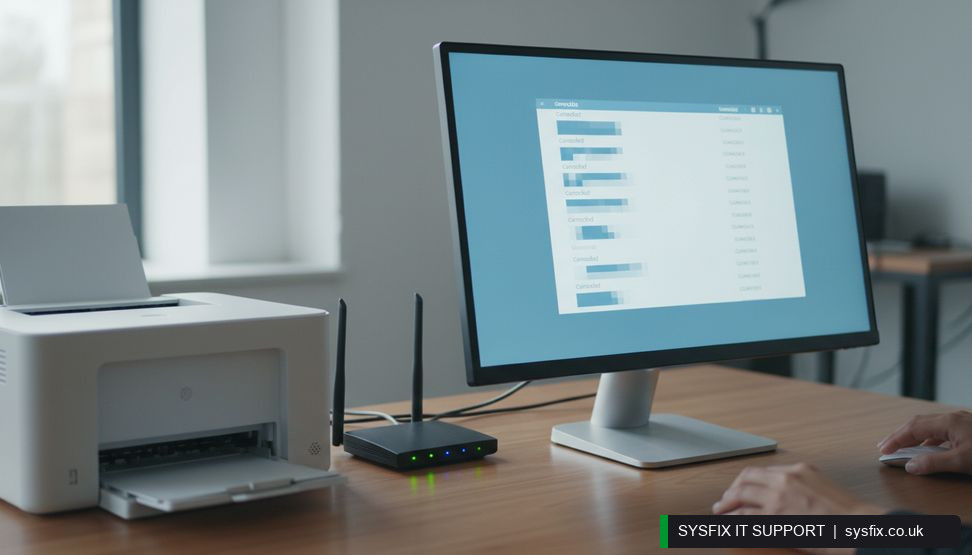
You sit down to print a ticket or a form, hit Print, and nothing happens. The printer is switched on, the little WiFi light is on, and it is definitely on the same network as your laptop, yet Windows insists it is offline. It is a frustrating, very common problem, and most of the time you can fix it yourself in a few minutes.
In a nutshell
✓The quickest fix is usually to check the printer's status and set it as your default printer.
✓Restarting the print spooler clears stuck jobs that make Windows think the printer is offline.
✓If that fails, remove the printer and add it again on the same WiFi network.
✓Stop and get help if the printer drops off WiFi constantly or shows hardware errors.
Start with the simple checks
Before you change anything, rule out the easy things. An offline message often just means the printer and computer have lost track of each other, not that anything is broken.
✓Step 1: Look at the printer itself. Is it switched on, and is the WiFi or wireless light solid rather than flashing? A flashing light usually means it is trying to reconnect.
✓Step 2: On the printer screen or panel, print a network configuration page if it has that option. This shows the printer's IP address (its unique address on your home network) and confirms it is connected.
✓Step 3: Make sure your computer is on the same WiFi network as the printer, not a guest network or a mobile hotspot.
✓Step 4: On Windows 10 or 11, click Start, type Printers & scanners and open it. Find your printer and check whether it says Offline or Paused.
✓Step 5: If it is listed but not set as default, click it, choose Manage, then Set as default. Windows sometimes sends jobs to an old printer you no longer use.
Clear stuck print jobs and restart the spooler
The print spooler is a small Windows service that queues up your printing. If a job gets stuck, the whole queue can jam and Windows will show the printer as offline. Clearing it is safe and loses nothing.
✓Step 1: Open Printers & scanners, click your printer, then Open print queue. Cancel every job in the list.
✓Step 2: Press the Windows key and R together, type services.msc and press Enter. This opens the Services list.
✓Step 3: Scroll to Print Spooler, right-click it and choose Restart. Wait a few seconds.
✓Step 4: Switch the printer off at the wall for 30 seconds, then back on. Give it a minute to rejoin the WiFi.
✓Step 5: Try printing a test page. If it works, you are done. If not, move on to the next section.
If your PC has been sluggish or crashing alongside printing problems, a PC health check can rule out wider issues.
💡 Pro tip:Keep a note of your printer's IP address. If it goes offline again, you can re-add it directly by that address in seconds.
Remove the printer and add it again
Re-adding the printer forces Windows to build a fresh connection. This fixes most stubborn offline errors.
✓Step 1: In Printers & scanners, click your printer and choose Remove device. Confirm.
✓Step 2: Click Add a printer or scanner. Wait while Windows searches.
✓Step 3: When your printer appears, click Add device. If it does not appear, choose The printer that I want isn't listed and follow the prompts to add it by its IP address, which you found earlier.
✓Step 4: On a Mac, open System Settings, then Printers & Scanners, remove the printer with the minus button, then click Add Printer and select it again.
✓Step 5: Print a test page to confirm.
If you have tried all of this and the printer still refuses to stay connected, a local technician can often sort it in one visit, for example through computer repair in London.
🔧 Stuck on this step? Don't struggle on. A SysFix engineer can take over remotely and sort it while you watch. Book a remote session →
Fix common WiFi and driver problems
Sometimes the printer and router are simply not talking properly, or Windows is using an out-of-date driver (the small piece of software that lets Windows speak to your printer).
✓Step 1: Restart your router. Unplug it for 30 seconds, plug it back in and wait for the lights to settle. This alone fixes many offline printers.
✓Step 2: If your router has separate 2.4GHz and 5GHz networks, connect the printer to the 2.4GHz one. Most printers only work on 2.4GHz.
✓Step 3: Move the printer closer to the router for testing. Thick walls and distance weaken the signal.
✓Step 4: Update the driver. Go to your printer maker's official website, find your model and download the latest driver for Windows 10 or 11. Only download from the manufacturer's own site.
✓Step 5: After installing, restart your computer and try printing again.
Never install driver software from pop-up adverts or unknown download sites.
When to stop and get help
Most offline printer problems are annoying rather than serious. But some signs mean it is time to stop fiddling and ask for help.
✓The printer drops off WiFi every day, even after re-adding it and restarting the router.
✓You see hardware errors, grinding noises, or the printer refuses to power on properly.
✓Printouts come out smeared, streaked or with missing lines after a new cartridge.
✓Your computer shows other strange symptoms at the same time, such as pop-ups, slow performance or files going missing, which can point to malware rather than a printer fault.
In those cases, an engineer or a remote support session is the quickest route. Do not attempt registry edits or risky command-line fixes you do not understand, as these can cause wider problems.
Want us to help you with this?
Book a quick remote session and a SysFix engineer will fix your offline printer for you while you watch. No jargon, no stress, just printing sorted.